Applies to direct API integrations. There is no staging connector. To test a Shopify or WooCommerce connection, place a low-value real order and cancel it.
Staging is where every integration is built. See Environments for why.
You can move a staging order through its statuses yourself from the staging dashboard. Use it to exercise your webhook receiver without asking anyone to move an order for you.
Staging only. The control appears on the production Orders screen but the action is not permitted there. Nobody moves a live order's state from the dashboard.
Open Orders in the staging dashboard, select the orders you want to move, then Admin Actions → Bulk Change State. The dialog offers the same state values as Order statuses and their events, including delivery_failed.
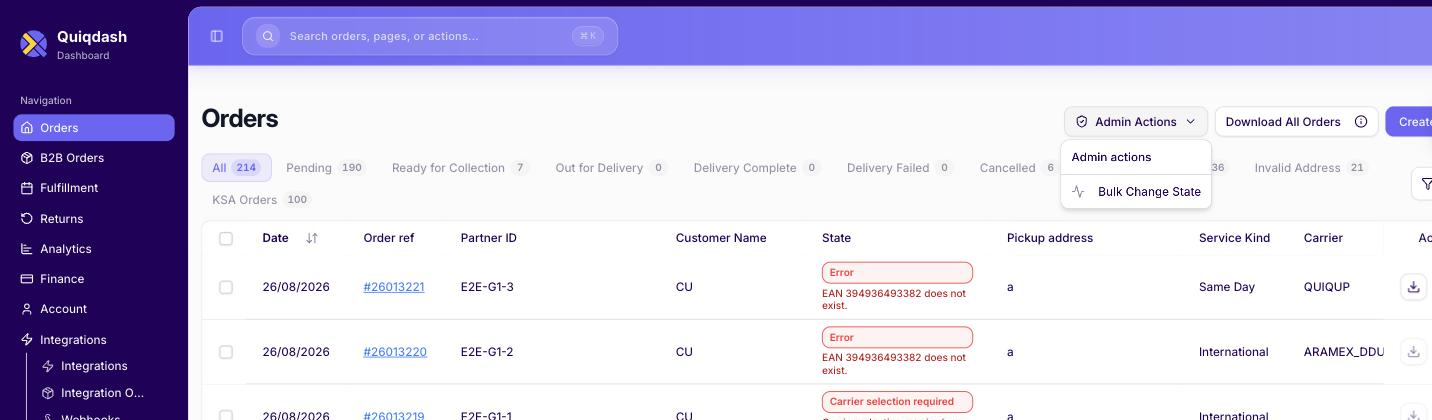
Your webhook fires on each transition, so this is how you exercise a receiver end to end without waiting on a real courier.
Run all of these on https://api.staging.quiqup.com before you ask for go-live.
| # | Scenario | What proves it |
|---|---|---|
| 1 | Authenticate | You hold a working token. On the Quiqdash path there is no call to make, so confirm the token you generated is accepted. On client credentials, confirm you cache it rather than re-authenticating per request. |
| 2 | Create a Next Day pre-paid order | A success response with an order id |
| 3 | Create a Next Day COD order | payment_mode: paid_on_delivery with an amount above 1 |
| 4 | Create a Same Day order | Confirms the service is enabled on the account |
| 5 | Create a fourth order and cancel it | PUT /orders/batch/set_cancelled returns the order with state: cancelled. Cancel works until collection starts, so this also works after release. |
| 6 | Mark the other three ready for collection | State moves off pending |
| 7 | Download the AWB (shipping label) for each | GET /order_label/{order_id} returns a PDF |
| 8 | Retrieve an order | GET /orders/{order_id} returns the current state |
| 9 | Drive one order to delivered | Your webhook endpoint receives a callback at every transition |
| 10 | Drive one order to a failed delivery | Your code handles the non-happy path |
| 11 | Read an order's history | GET /orders/{order_id}/history returns every state it passed through |
| 12 | Retry a create after a simulated timeout, sending the same uuid | The retry returns HTTP 200 with the original order id, and no second order or AWB exists. Without a uuid the retry makes a duplicate, which you would have to find and cancel before collection starts. |
Five orders in total, counting the create in scenario 12. Keep the order ids and your own partner_order_id values. Support asks for them at go-live.
Production use follows a commercial agreement and an activated production account. Ask early rather than at cutover: those are the gates that take time, not the key.
Checklist:
- Commercial terms agreed and the account activated (trade licence, bank card, finance details)
- The staging scenarios above all pass, with references sent to support
- The services you use are enabled on the production account
- A key for production, named after the environment, or production client credentials if you use the client-credentials flow
- Base URL switched to
https://api-ae.quiqup.com - Production webhook URL registered in Quiqdash. Staging registrations do not carry over.
- One production order created, released and confirmed collected before your first real order
| Staging | Production | |
|---|---|---|
| Quiqdash key | Generated on the staging dashboard | Generated on the production dashboard. Use each key only on its own host: why |
| Client credentials | Separate pair | Separate pair |
| Base URL | api.staging.quiqup.com | api-ae.quiqup.com |
| Webhook subscription | Separate subscription, separate signing secret | Separate subscription, separate signing secret |
| Couriers | Simulated | Real |
| Charges | None | Real |
Nothing carries over automatically. Every item above is configured twice.