Applies to the Shopify and WooCommerce connectors only. This page is about orders that your shop created and the connector did or did not pass to Quiqup. If you build on the API there is no intermediate stage and nothing here applies. See Order lifecycle instead.
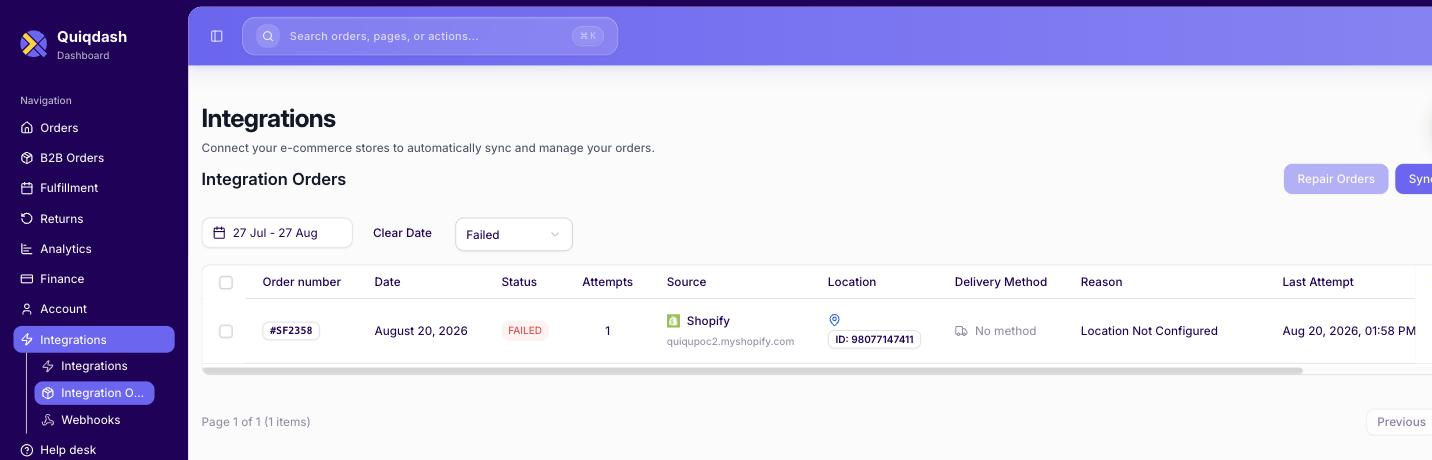
Quiqdash → Integrations → Integration Orders lists every order from your sales channel, whether it reached Quiqup, the reason if it did not, and a Repair Orders action.
Check it before emailing anyone. It answers most "my order never arrived" questions on its own.
Dashboard URLs are listed once in Environments.
Each row is one order from your store, with a status. The columns are order number, date, status, attempts, source store, location, delivery method, reason and last attempt. Filter by date and by status.
The statuses:
| Status | Meaning |
|---|---|
| Success | The connector passed the order to Quiqup. |
| Failed | The order was not passed on. The reason column says why. |
| Skipped | The connector deliberately did not send it again, for example because the order already exists in Quiqup. |
The page opens filtered to Failed. Switch the filter to All to see every order.
Two actions sit at the top of the page:
- Repair Orders re-sends the selected orders, using your connector settings as they are now. Fix the cause first, or they fail again for the same reason. An order that already exists in Quiqup is skipped rather than sent twice.
- Sync Orders pulls the orders for a date range from your store and processes each one, rather than waiting for the next scheduled run.
| Reason | Fix |
|---|---|
Shipping Method Not Configured (Shopify), No Delivery Methods Configured (WooCommerce) | The order's delivery method is mapped to Do not read orders, or nothing matched it. If you want these orders delivered, map the method to a Quiqup service, then select the orders and press Repair Orders. |
Order Status Does Not Match Configured Initial States (WooCommerce) | The order has not reached the status that triggers a transfer, usually Processing. Change the trigger status or move the order. |
Location Not Configured (Shopify) | The store location on the order has no Quiqup pickup location mapped to it. The Location column shows the store's location ID, which you map on the connector's settings page under Integrations → your platform. |
| Delivery address outside coverage | Check the emirate and coordinates on the order. |
| Invalid customer phone | The dropoff phone must be a valid UAE number in E.164 format, one +, no separate country-code field. |
| A service you want is missing from the mapping list | The list only offers the services enabled on your account. Ask your account manager to enable it. |
An unmapped delivery method is not skipped. A method you have not mapped shows as blank on the settings page, under an Unmapped Delivery Methods warning. Orders that use it are still sent to Quiqup, as Next Day, unless you have mapped All Other Orders to something else. They appear on this page as Success.
To keep those orders out of Quiqup, map the method to Do not read orders. Those orders then appear here as Failed with the reason above, which is expected.
Fixing a mapping does not change orders already sent. Repair Orders sends Failed orders again with the new mapping, but an order that already reached Quiqup on the wrong service is skipped as a duplicate. Cancel it and create it again, see Service types.
- Orders placed before the connector was configured. There is no backfill. Create those manually in Quiqdash.
- Orders that never reach the configured trigger status.
- Digital-only orders. Shopify lists these as Failed with the reason
Digital Products Only.
Sync runs on a schedule, not instantly, so allow for a delay between an order being placed and appearing in Quiqdash.
A connector connection can die silently. The known causes are all connector-side:
- The OAuth token between the two platforms expired
- Your store's REST API keys were regenerated
- Someone edited the connector configuration
- The store went live with a different set of shipping rates, so the old mapping no longer matches
Nobody is notified. The failure surfaces on the Integration Orders page, or through a customer asking where their order is.
This is not the same as an API integration going quiet. A direct API integration has no connection to expire. If your own code stops producing orders, the cause is on your side or in authentication, and Troubleshooting is the right page.